Blog

January 30th, 2012

There are times when you may want to capture what is currently being shown on your iPad's screen. That’s easy to do on an iPad.

Simply press the Home button and then the Sleep/Wake button simultaneously. When you hear a click, the screenshot has been taken. You can then go to the photos gallery to see all of your captured screenshots.

Published with permission from TechAdvisory.org. Source.

Topic Tech Tips
January 30th, 2012

The big difference between Android and the iOS is the fact that, on an Android device, you can play Flash videos. There are times however when this seeming advantage can be a disadvantage as Flash (such as Flash ads) can slow down your browsing experience or even crash your browser. There is a solution.

You can turn off Flash if you choose to. Simply go to your Browser's Settings by pressing on the Menu/Options button, then go to Advanced and change 'Enable plug-ins' setting from "Always on" to "On demand." Flash applications will now appear as an arrow that you must touch to start.

Published with permission from TechAdvisory.org. Source.

Topic Tech Tips
January 10th, 2012

If you own an Android phone, you can use it as a substitute for an external drive or a USB key. You can load files into your phone simply by plugging it in to a PC with a USB cable, then tapping on “Mount” when you are prompted by the system.

This mounts the internal storage of the device as an external drive relative to the PC, and you can easily drag and drop files or create folders on the device as you see fit. Of course, it is recommended you do this on the SDCard that likely came with the device, or one that you buy for your phone.

Published with permission from TechAdvisory.org. Source.

January 2nd, 2012

If you are using Windows Gadgets (or those small mini-applications that are embedded on your desktop that show interesting things like the latest news, weather updates, or sports scores), you may sometimes wish you can just quickly hide them to declutter your workspace.

In Windows 7, you can do just that. Simply right-click on the desktop, go to View, and then clear the check mark on Show desktop gadgets. This will hide the gadgets. If you want to bring them back, just restore the check mark again.

Published with permission from TechAdvisory.org. Source.

Topic Tech Tips
December 23rd, 2011

Have you ever sent an email and then immediately regretted sending it? If you are using Gmail as your mail client, you can do just that with an interesting but buried option in Gmail settings.

To enable this feature, go to Mail Settings in Gmail (upper right corner, under the gear icon). Navigate to the "Labs" tab. In the labs search box, look for "Undo Send" and choose Enable, then save. Now in Mail Settings you will see an option to "Undo Send: Send cancellation period: __ seconds." Enter the number of seconds that Gmail will allow you to change your mind in the future (try 10 seconds).

With this enabled, the next time you send an email, you’ll be able to “Cancel” it from being sent out, as long as it is within the time frame you specified.

Published with permission from TechAdvisory.org. Source.

Topic Tech Tips
December 15th, 2011

Do you prefer Bing over Google but like Google's sparse but fast loading page better? With this tip you can get the best of both worlds.

As users of Bing know, when you visit the home page of Bing, a page with a featured photo as the background is displayed by default, which increases the load time of the page. This can be distracting or annoyingespecially if you have a slow connection. Disable this photo from loading by simply bookmarking this URL (http://www.bing.com/?rb=0). The next time you visit Bing, the photo will not appear.

Published with permission from TechAdvisory.org. Source.

Topic Tech Tips
December 5th, 2011

Did you know that on iOS5 on the iPad, you can actually split the keyboard into two? This can be useful for typing with your thumbs if you are holding the iPad with both hands.

To do so, press and hold the keyboard icon on the on-screen keyboard. An option will appear, allowing you to split the keyboard into two. Alternatively you can drag the keyboard icon up across the screen until the keyboard splits up. Still another way is to simply put two fingers around the center of the keyboard and simultaneously drag them apart in a splitting motion.

Published with permission from TechAdvisory.org. Source.

Topic Tech Tips
November 25th, 2011

Want to do a quick currency conversion? You can use Google for that. Simply type in the amount in the original currency, then the currency you want to convert it to.

For example, type in: "100 dollars in yen" or "100 dollars in Mexican Pesos" and check out the results. If you have a mobile data plan on your mobile phone with a browser, you can use this tip for quick currency conversions on the go.

Published with permission from TechAdvisory.org. Source.

Topic Tech Tips
November 22nd, 2011

AVG 2012 first look
Micro Doctor, Inc. has recommended, supported, and utilized many antivirus programs over the years. Initially Norton Antivirus was our favorite, however viruses started getting through fully updated and functional installations of this software, and its processes started taking over the CPU cycles of the installed PC, which made the machine run significantly slower. The worst version release was Norton 360, wow what a hog. It took over the PC, firewall and basically made you re-open ports and program exceptions to get mail and Internet to work properly again. Anyway, over the years we have worked with McAfee, Kaspersky, Trend Micro, Sunbelt Vipre and AVG.

While no Antivirus program is perfect, AVG is what you will find on my personal and work PCs. I have installed the AVG 2012 version and have some pros and cons for you to consider. First, AVG is keenly aware of and attempts to minimize its “footprint”. The “footprint” is the amount of resources the antivirus program consumes while it is protecting your PC. AVG 2012 has improved its performance and startup speed since version 2011. The program is good at protection and when I click on a suspected virus download it pops up and asks me what I want to do; Move to Vault, Ignore or Delete infected files. Of course, many virus attacks now are known as “drive by” viruses. You are on a website and a pop-up says, “Some items on this page cannot be displayed, would you like to display blocked content?” The “blocked content” turns out to be a virus and you install it by clicking Yes where indicated. Another way viruses get invited in is by looking like an Internet Explorer add-on. Some say “The pictures on this website require a picture viewer add-on to view: Please click OK to install this Internet Explorer Add-on.” Once you do that virus pop ups aren’t far behind. The rule of thumb is… don’t download or install add-ons that you are not specifically requesting yourself. Also, make sure they are signed by Microsoft, Adobe, Macromedia or Sun Microsystems.

What are the problems with AVG? Main problems are the installer and installer defaults. I never let AVG just install everything by clicking next, next, next. If you do, it will install a toolbar, change your default search provider and install a desktop gadget, all of which slow your computer. These things are known as bloatware, or extra unnecessary installed programs that you do not need to run the software you originally wanted. Bloatware was invented by Dell with all the extra programs they started installing on their PCs. You prevent the AVG bloatware by choosing the “Custom” installation instead of simply accepting the default settings and letting AVG choose which components to install. Software manufacturers actually pay hardware manufacturers like Dell to install their programs on the PC. How many toolbars does one want or need on internet explorer? I recently was training a technician and was following up after a virus removal, he did a great job at removal of the virus but when I opened internet explorer it had 5 toolbars! Google Toolbar, Yahoo Toolbar, AVG Toolbar, Bing Toolbar, Favorites Toolbar and the normal menu toolbars. We finished cleaning those up before the PC left our shop.

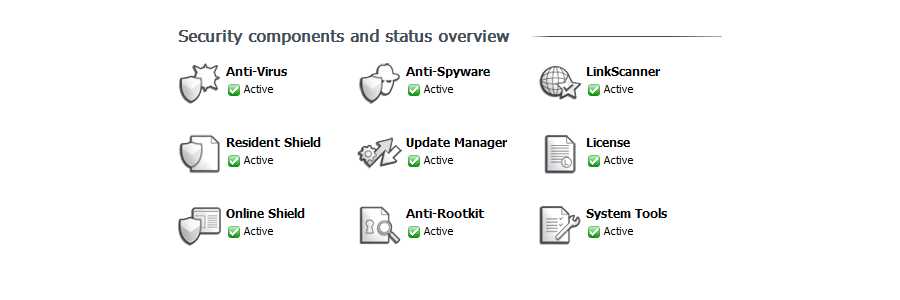
Always when asked, choose custom install on all programs. It is not really too intimidating and, in fact, sometimes is just a couple of questions along with un-checking a box to install another toolbar. When I install AVG I choose Antivirus, Safe Search, Link Scanner, Email Scanner and Anti Rootkit. I do not install Identity Protection or any other modules. My status screen looks like this.

AVG SettingsPricing for AVG Antivirus starts at around $39.99 per PC per Year. However there are discounts for multiple years and multiple PCs that make it one of the most reasonable full featured antivirus programs available.

We include AVG antivirus software for free on all of our Proactive Service Plans at Micro Doctor. We currently monitor almost 1000 business customers with the help our AVG antivirus and we have several hundred on enforced antivirus from Sonicwall powered by McAfee Antivirus.

The key to success with any antivirus application, is to keep it up to date, apply anti-virus upgrades, and Windows Update patches when available. Some of these Windows patches must be applied manually as they are not included in the Critical updates that can be automatically applied. Most machines we find with a virus infection do not have up-to-date Antivirus or Microsoft Windows Patches.

If you would like a free security assessment, contact Micro Doctor, Inc. on our website form.

Written by Mark Richmond, MCSE, CSSA Microsoft Certified Small Business Specialist at Micro Doctor Inc. 11/21/2011


November 18th, 2011

The Mac introduced the concept of using multiple "Desktops" (previously called "Spaces") using Lion's Mission Control application. Using Mission Control, you can specify which desktop applications will automatically open in which desktops by default.

To set your preferences, select and right-click (or ctrl+click or two-finger click) on an application in the Dock, then select the "Options" menu in the resulting pop-over. Inside that menu, links appear that allow you to remove the app from the Dock, open it at Login, or to have it Show in the Finder app. If you have multiple desktops active, an additional set of options will appear at the bottom. Here you can "assign" the app to "This Desktop" or the current active desktop, or to open in "All Desktops" or "None." Make your selection and your app will now open in the specific Desktop or Desktops you specify on launch.

Published with permission from TechAdvisory.org. Source.

Topic Tech Tips